Lanzo - Gutenberg WooCommerce WordPress Theme
- Item Name: Lanzo - Gutenberg WooCommerce WordPress Theme
- Item Version: 1.0
- Author: AluraStudio
- Support: https://themeforest.net/item/lanzo-gutenberg-woocommerce-wordpress-theme/26027319/support
First of all, Thank you so much for purchasing this theme and for being my loyal customer. You are awesome!
You are entitled to get free lifetime updates to this product + exceptional support from the author directly.
In this document, we provide all kinds of good information with all the details you need to use our theme. We hope you have fun and enjoy working with our theme.
Getting Started
Requirements
- PHP version 5.6 or greater
- MySQL version 5.5 or greater
- Post max size > 20MB. If you upload error, please upload via Cpanel or FPT.
Your server needs to be set up with the above requirements to be able to run WordPress.
You can read more in WordPress Requirement.
Compatibility
Our theme is compatible with these browsers:
- Chrome
- Firefox
- Safari
- Microsoft Edge
1. WordPress Upload
- Download the theme zip file from your Envato account from ThemeForest.
- Sign in to your admin panel: <"yourdomain.com">/wp-admin
- Go to Appearance > Themes > Add New > Upload theme
- Choose the downloaded lanzo.zip and press the Install Now button.
- Wait while theme is uploading and click activate
If after clicking “Install Now” you see an error that “The package could not be installed. The theme is missing the style.css stylesheet”. You need to extract the folder and theme include on your package.
2. FTP Upload
If you’d prefer to install your theme via FTP/SFTP you can. It’s still super easy, there are just couple important steps you don’t want to miss.
First, you need to install a FTP (file transfer protocol) solution – we like Transmit or FileZilla (this second one is free – woot!). Once you’ve got it installed, open up your app to connect to your server.
Once you’ve added all your info save your server, then click to open it and browse to your wp-content/themesfolder.
Next you’ll need to download your WordPress theme which we covered in detail up above in the “WordPress Upload” section. Please make sure you’re downloading the “Installable WordPress file only.”
With FTP/SFTP you’ll need to unzip the that file you just downloaded from Themeforest (it should look like an open folder icon). Then upload the extracted theme file.
Now log into your WordPress installation and navigate to Appearance > Themes and click to activate your theme. See – not too hard, right?
Demo Content
1. Install Recommended Plugins
When you first activate the theme, you will be notified of what plugins are recommended to use Lanzo.

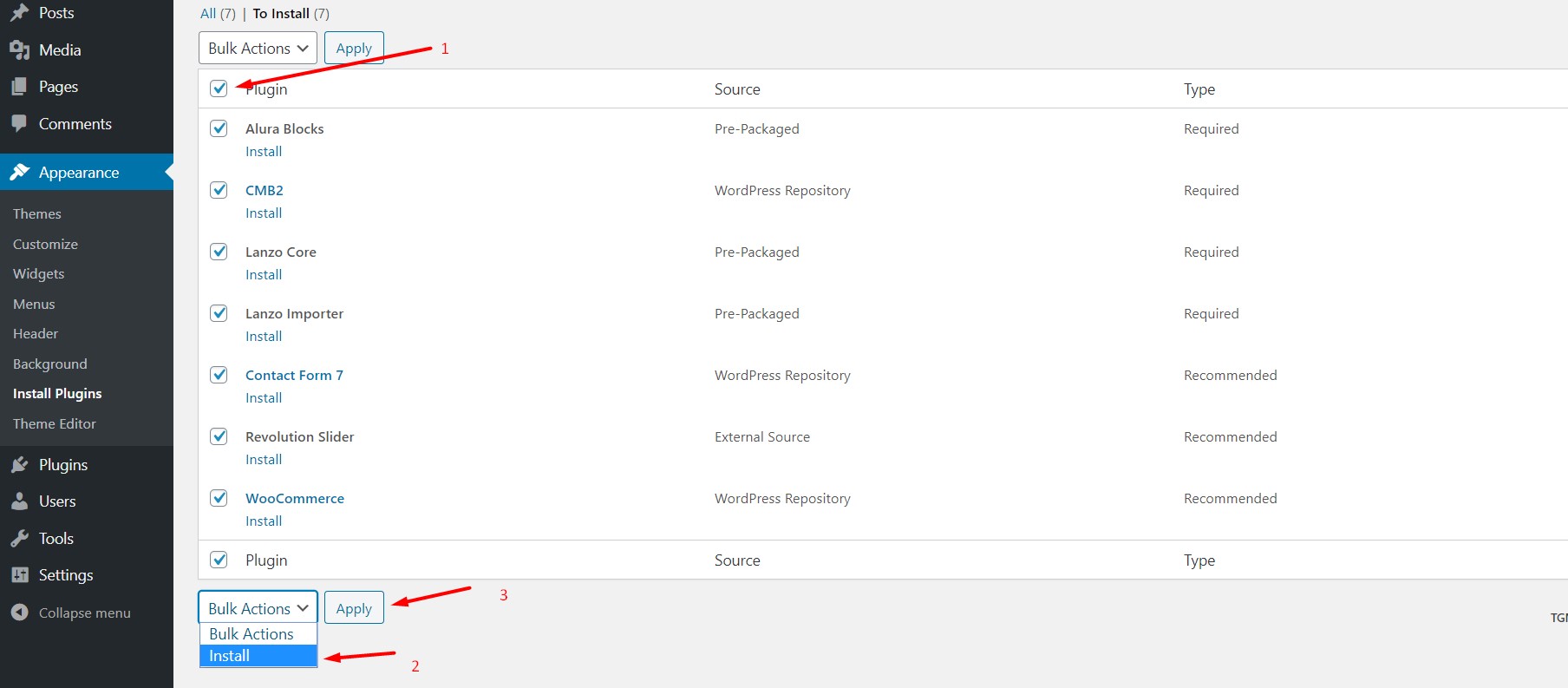
Wait for all the plugin activated then you can start customizing your website as you wish.
2. Import Demo Content
1. Go to Dummy Content in your admin panel:

2. Check all for Full Import. If the Demo Content import failed. Please check Demo Content and import again

Need Help?
Have questions? Get in touch with a friendly member of our team and we’ll be happy to help.
Theme Option
After activating our theme, you can go to Appearance > Customize to configure the theme.


Change Logo: Go to Appearance > General > Logo & Favicon:

Change Breadcrumb: Go to Appearance > General > Breadcrumb:

Popup Options:
- Popup Content: in WP-ADMIN > Static Block
- Popup Event: Time ( Set time for Popup show ) or Scroll ( When scroll in page )

You can Edit Popup Content in Static Block > Popup:

Custom 404 Page:

Maintenance Mode:

Social Button:

Cookie Notice:

And more:


Page Option
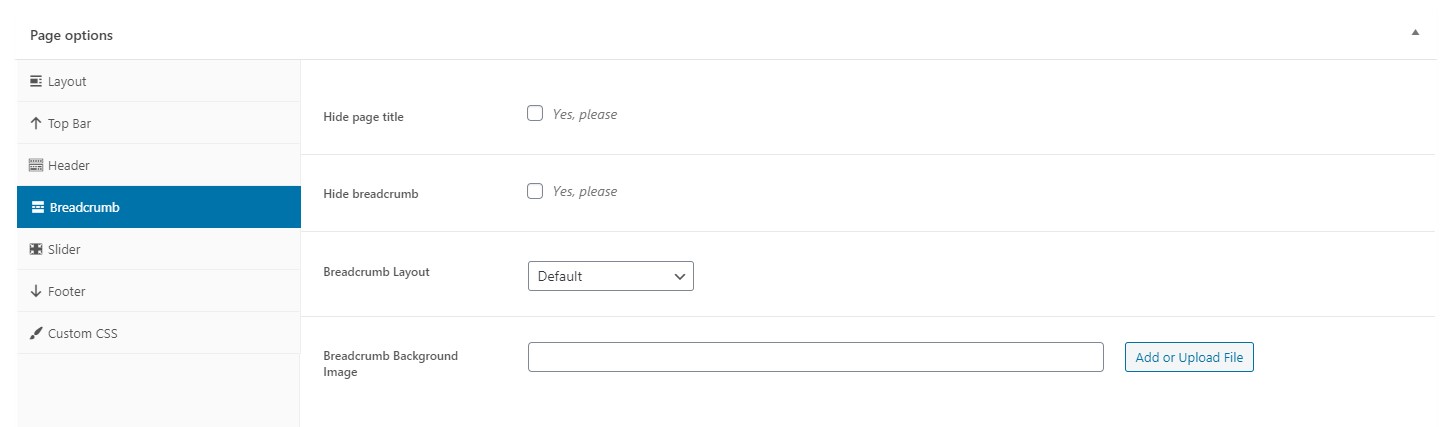
You can configure your layout, header, page title and others for any particular page.
- Layout
- Top Bar
- Header
- Breadcrumb
- Slider
- Footer
- Custom CSS


Product Option
- Layout
- Breadcrumb
- Size Chart
- Custom Tab
- Video
- Data Setting


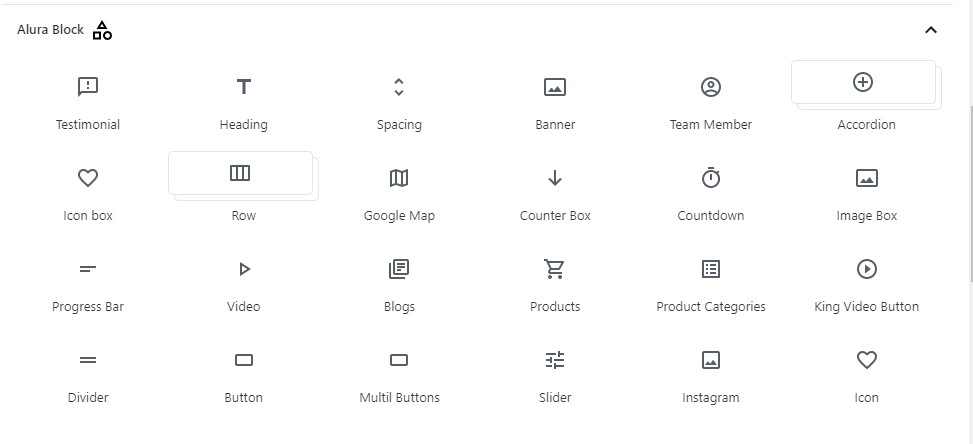
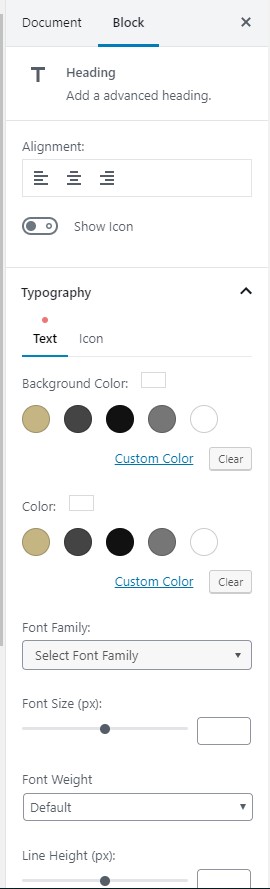
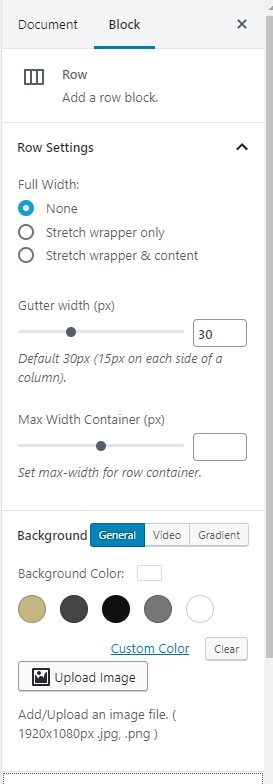
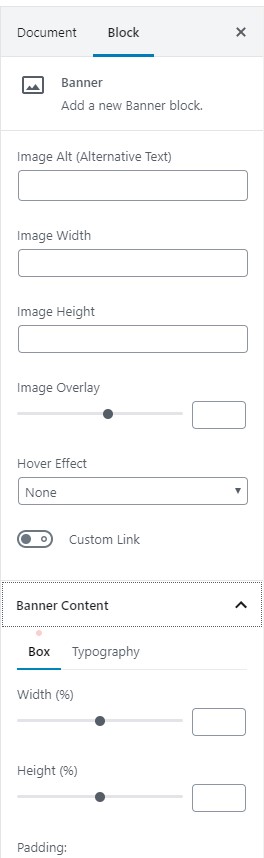
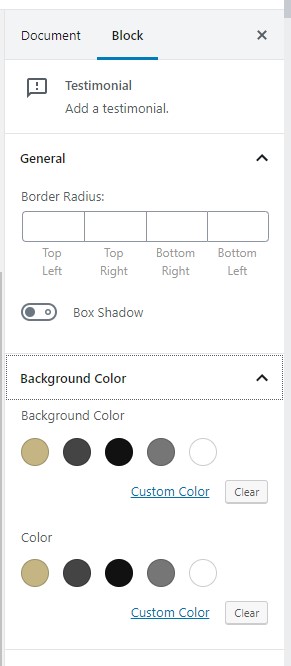
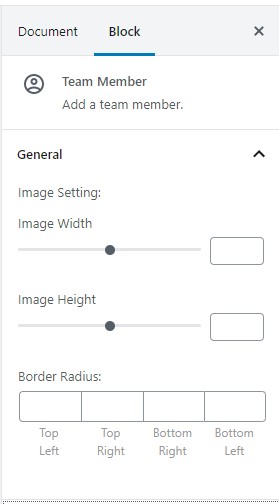
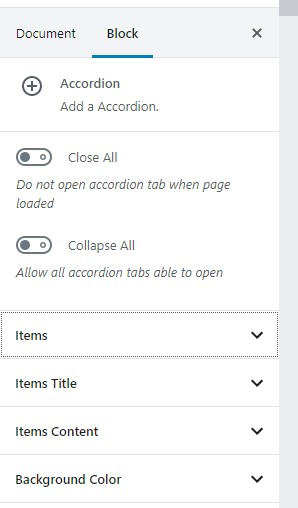
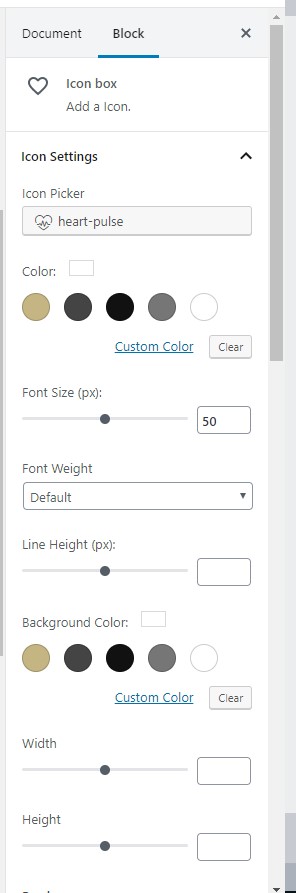
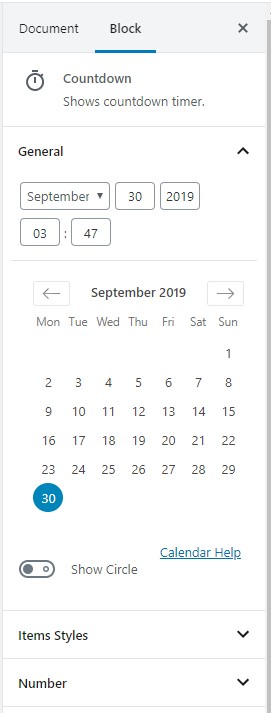
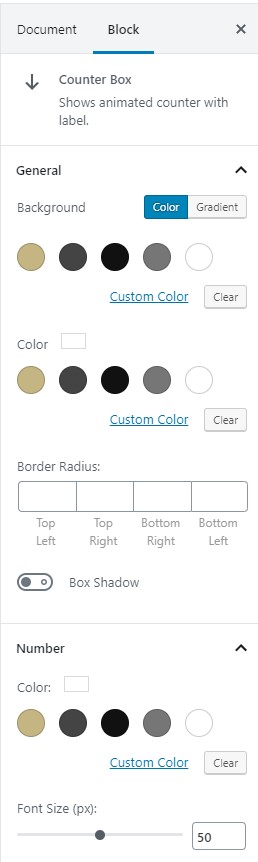
Gutenberg Block
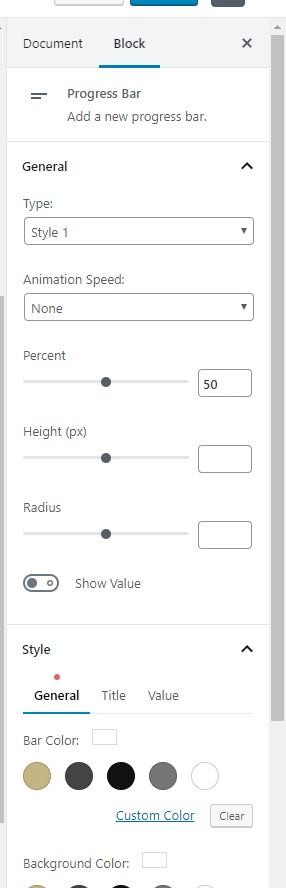
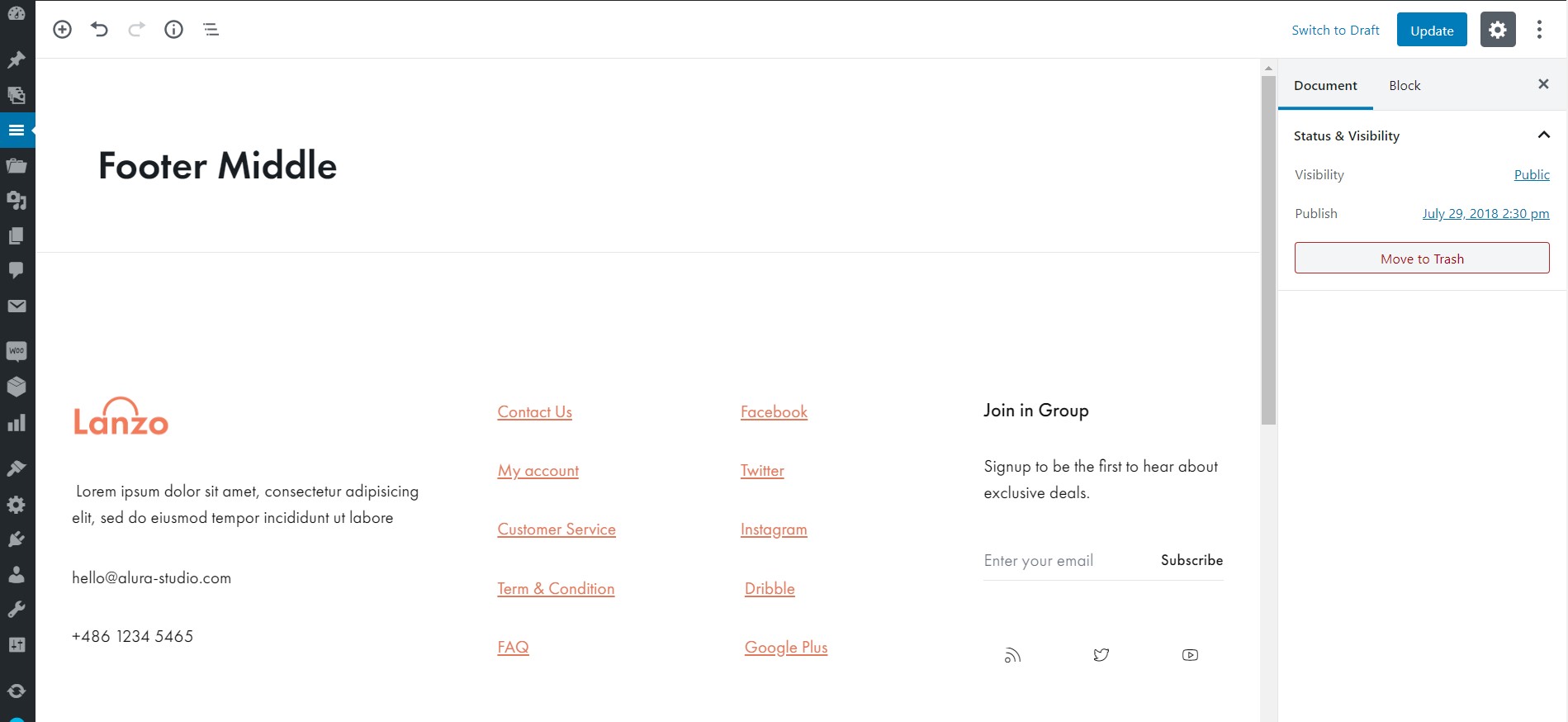
Footer Builder
To create Footer or to customize go to WP Admin > "Footers Builder".
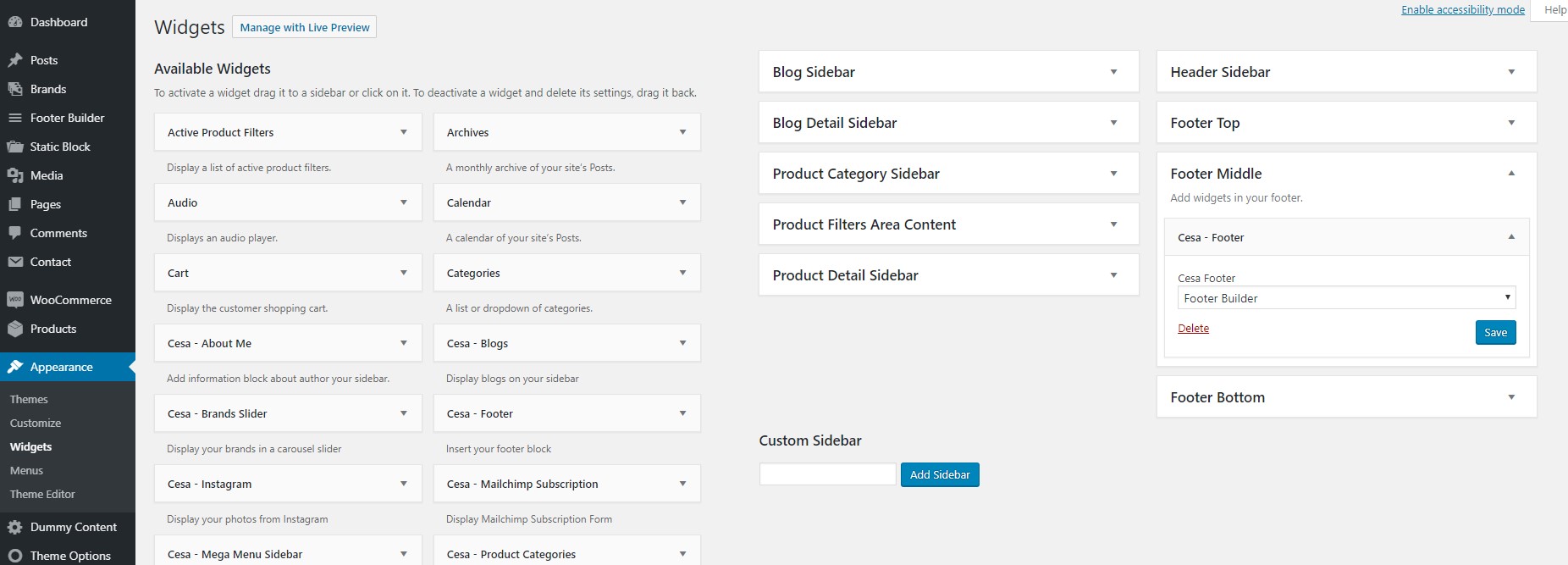
After you go to Appearance > Widget and set for Site Footer
Setup WooCommerce
You can watch video https://docs.woocommerce.com/document/woocommerce-guided-tour-videos/
Read Document WooCommerce: https://docs.woocommerce.com/
Update the Theme
1. Manual Update
- First, you download the new theme package from themeforest. You have to log into your themeforest account and navigate to Downloads tab. You find the Umbala theme in your purchased themes list.
- You can delete the current theme. Don't worry about this. Your data won't be lost.
- You upload the new theme package via Wordpress or FTP software.
2. Automatic Update
You update the theme through the Envato Market plugin. Follow the steps below to set up this plugin:
- Download and install the Envato Market: DOWNLOAD THE ENVATO MARKET PLUGIN
- Login to your WordPress Dashboard
- Go to Plugins > Add New
- Click “Upload Plugin” at the top
- Upload the envato-market.zip file
- Once installed, click “Activate Plugin”
- The next step is to sync the Envato Market plugin with your Envato account to have access to all of your marketplace purchases as well as item updates.
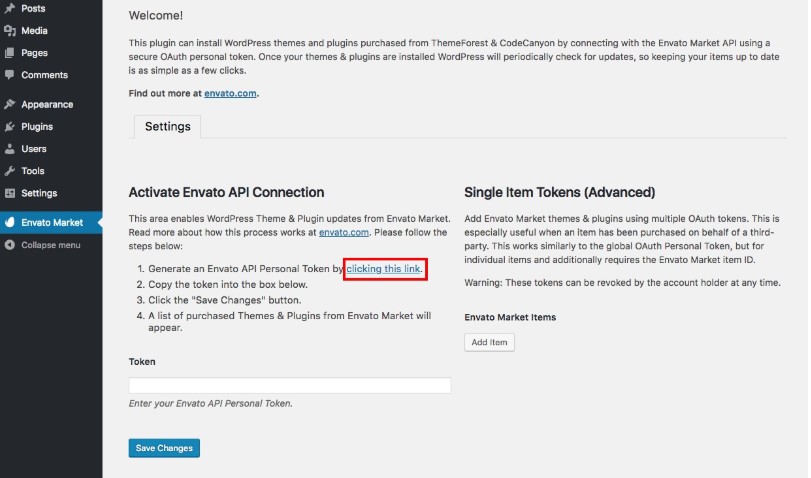
To get started click on the Envato Market link in your dashboard menu. You should see a screen similar to the one above. The very first step is to create an Envato API token. To do this, click on the generate a personal token link (highlighted in red above).

If you’re already logged into your Envato account you’ll be taken to the screen above (otherwise you will be prompted to login first before being redirected to this page). On this screen you can see what the Envato Market plugin is requesting permission to access via your Envato account (Envato sites, the ability to download your items, a list of your purchases and verification of your purchases). To proceed give your token a name, check the box that you have read and agree to the terms and then click the green button to create your token.

Once your token is created you will see a green success screen. Copy your token code (this is very important since Envato doesn’t store a copy of the token for you), check to confirm that you’ve copied it and click the white button that you got it.

Now go back to your WordPress installation and paste in your Envato API token then click save.
It’s possible that you might see the error above when you first enter your token. Don’t worry, just go back to the previous page and try again. It should work on the second go.
Please read this tutorial https://envato.com/market-plugin/ to get more information.
New version 2.0
- Update for Customize
- Go to Customize > General > Instagram and update for User ID and Access Token
- First, You need connect Instagram to Facebook Page in here: https://facebook.com/[YOUR-FACEBOOK-PAGE]/settings/?tab=instagram_management
- Then Go to https://smashballoon.com/instagram-feed/token/ and click to Business and then you copy User ID and Access Token.
- You need update for Breacrumb Image.
- Update New Instagram:
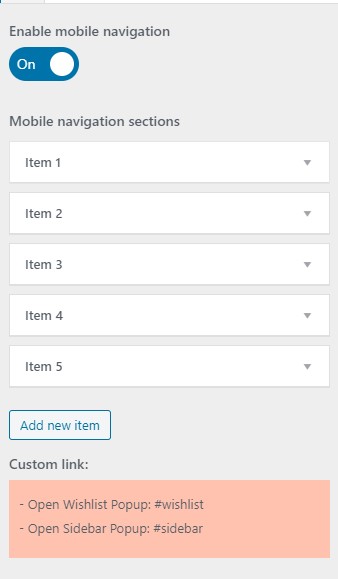
- New Mobile Panel:
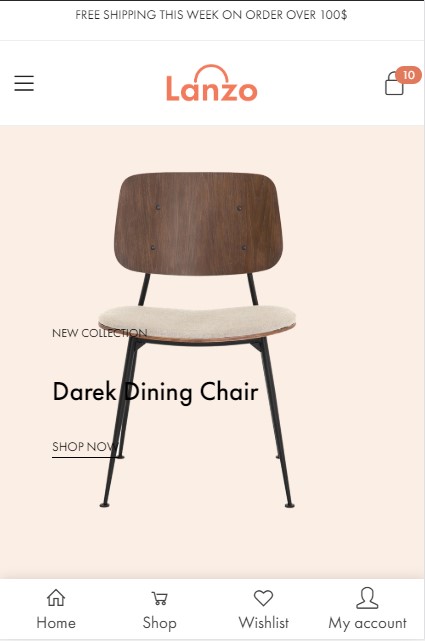
Go to Customize > General > Mobile Panel and config for Mobile Navigation bar
- Favicon:
Customize > Site Identity and upload Favicon again
- Update Typography:
Go to Customize > Color & Typography > Typography and change for Font-family, font size and more..
Go to Customize > Color & Typography > Custom fonts and change for custom fonts data
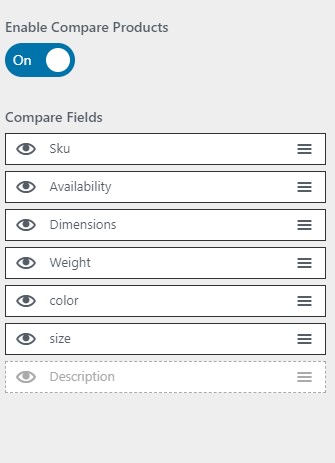
- Update Compare feilds:
- Custom "Hot" label WooCommerce:
Customize > Shop > General > Feature Text
You need backup site and save option in customize: typography, fonts... Because after update theme, You need config again.